
Quick Start
If you encounter any issues, please first refer to the FAQ, or use the quick search function in the top right corner of this site.

Software Introduction
Yinxiang Assistant (Evernote Helper) is a utility for Yinxiang Biji (Evernote China). it allows you to download all your notes from the Yinxiang platform to your local machine for offline storage. This not only provides a local backup but also supports exporting your notebooks to other formats, making it easy to import them into other note-taking software and freeing you from platform lock-in.
Supported export formats:
- ENEX format: Supports importing into many other note-taking applications (e.g., Youdao Cloud Note).
- Markdown format: Allows you to easily import your notes into Obsidian or Logseq.
Installation
Choosing the Right Package:
- Windows: Requires Windows 10 or later.
- macOS: Requires macOS Big Sur or later.
- Linux: No specific restrictions at this time.
- For macOS, if you have an Apple Silicon CPU (M1, M2, M3, etc.), choose the package with arm64; otherwise, choose the x86 package.
This is portable software; no installation is required. Simply extract the files and double-click to run.
- Download the latest package from here and extract it using 7-zip (see commonly used software downloads).
- By default, the software downloads data to a directory on your C drive, but you can change the download directory to any location in the settings. Restart the software for changes to take effect.
- Place your order to receive an activation code.
If the software fails to run and you are using macOS, please refer to the macOS Software FAQ. Due to strict security policies on macOS, if the provided instructions do not resolve your issue, consider using a Windows virtual machine via VMware Workstation Pro or VirtualBox. For issues on Windows or Linux, please contact us.
Usage
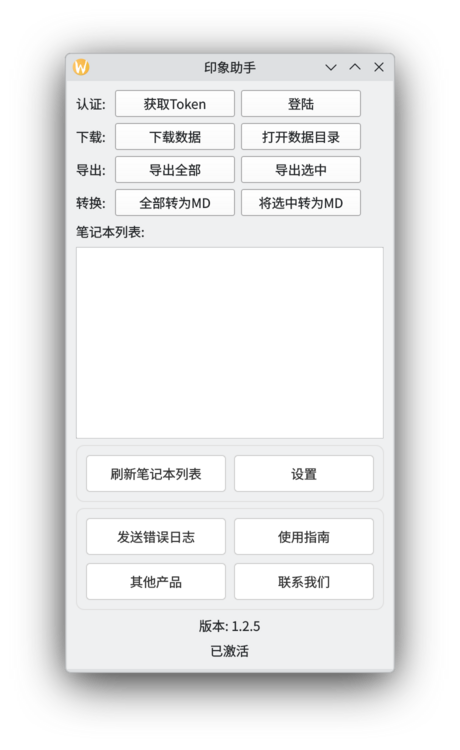
Interface Overview
- Get Token: The software requires a token from Yinxiang Biji. Clicking this button will open the token acquisition page in your browser. This is the first step. Once successful, you rarely need to repeat it unless your token expires.
- Login: Copy the token you obtained and paste it into the login popup. This is the second step. Like the first step, this does not need to be done every time.
- Download: Downloads all notes from the Yinxiang Biji cloud to your local machine. This is the third step. Whenever you have new notes in the cloud, click this to sync them locally.
- Open Data Directory: Opens the folder where all software data is stored, including downloaded note data, exported files, and converted Markdown files.
- Export All: Exports all your notebooks to a sub-directory in the data path. Each notebook is exported as an
.enexfile, preserving your folder structure. - Export Selected: Choose specific notebooks to export.
- Refresh Notebook List: After a sync completes, click this to refresh the local list of notebooks. Use this if a new notebook doesn't appear after a successful download.
- Settings: Configuration options.
- Send Error Logs: If an exception occurs, click this to send background logs to us for troubleshooting.
- User Guide: Opens this operation guide.
- Other Products: View our other software offerings.
- Contact Us: Get in touch with our team.
Data Storage Directory
The "Data Directory" is where the software stores all downloaded note data and processed export data. On most systems, this is located at evernote-helper in your user home folder.
Directory structure:
- evernote.db: This file contains all your downloaded note data. Do not delete it, or you will have to re-download everything from the cloud.
- output: This sub-directory contains your exported notebooks (e.g.,
MyBusiness.enex). - Markdown Conversion: Clicking "Convert to MD" will convert your
.enexfiles into Markdown format (e.g.,MyBusiness.markdown). Note that you must Export a notebook to ENEX before you can Convert it to Markdown. - Nested Folders: If you use nested notebooks in Yinxiang Biji, the exports will follow that same directory structure.
- You can safely delete the
outputdirectory; it can be recreated at any time by exporting again fromevernote.db.
Getting a Token
Click the Get Token button. Your browser will open the Yinxiang Biji login page. Log in as usual, and you will see the following page:
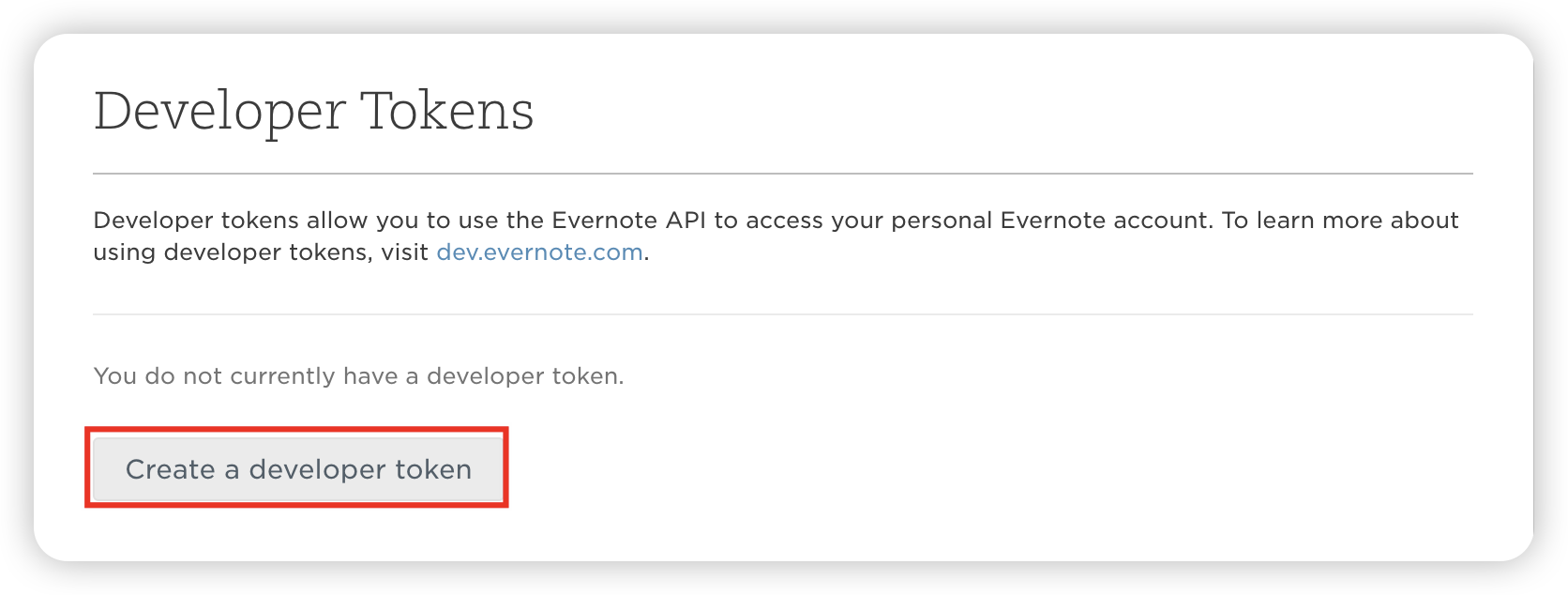
Click the button in the red box (which means "Create a new token"). You will then see the token; copy it.
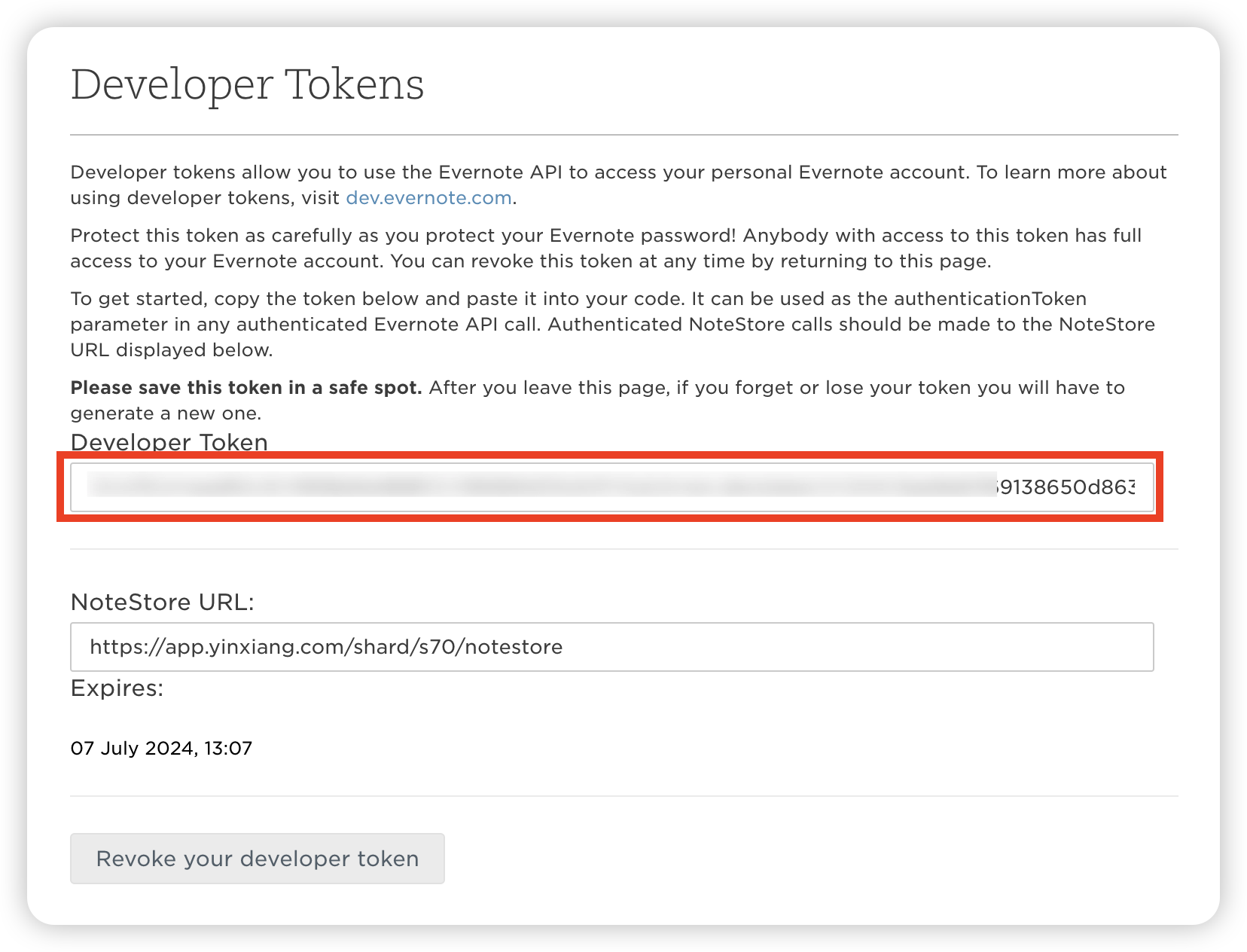
- Expires: The date the token will expire. You will need to generate a new one after this date.
- Revoke your developer token: You can revoke an existing token and create a new one if needed.
Finally, click the Login button in the software and paste the token into the input field.
Syncing Data
After logging in, click Download Data. The software will sync all notebooks and notes from the cloud to your local directory.
- Traffic Limits: Yinxiang Biji limits traffic. This software automatically detects and handles rate limits. If a limit is hit, the download will pause and resume automatically when possible (unattended mode).
- Sequence: You must complete the "Download Data" step before you can export or convert notes.
Exporting Data
Once downloaded, you can choose Export All or Export Selected. This generates .enex files in the output directory.
Converting to Markdown
After exporting notes to ENEX, you can click Convert to MD to generate Markdown versions in the same output directory.