
Quick Start
If you encounter any issues, please first read the FAQ, which contains almost all common problems and solutions encountered by users. Alternatively, use the search function in the top right corner of this site.

About the Software
Planet Helper automatically downloads posts and documents from ZSXQ (Knowledge Planet). It features advanced local search, intelligent document classification (under development), and AI-powered Q&A (integrated with Agents).
Important Notes:
- You can only download data from planets you have already joined (both free and paid). Content from planets you haven't joined cannot be accessed.
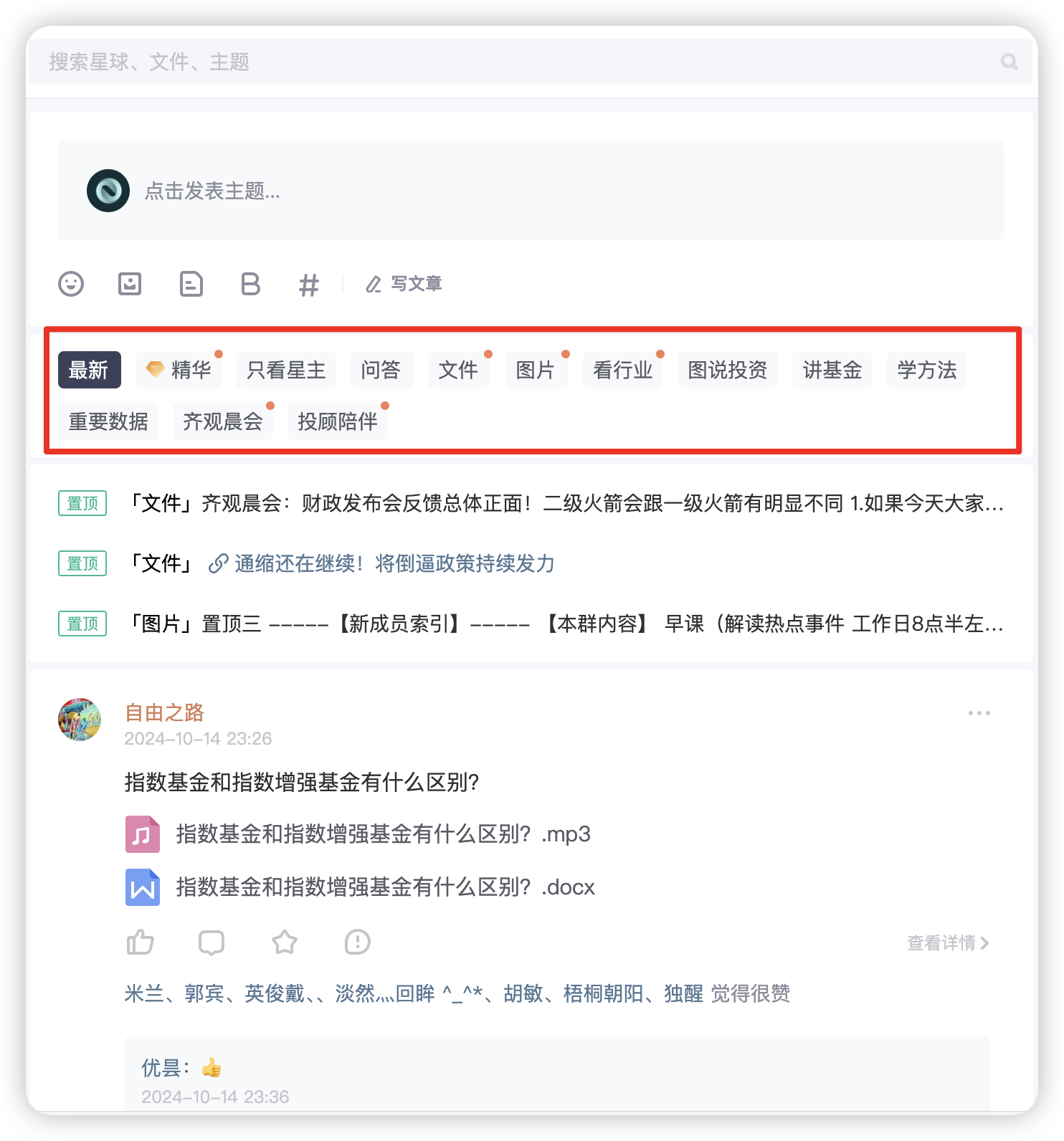
- The software downloads data based on the "Tags" used by ZSXQ to categorize posts. To download content from a specific category, click its corresponding tag in the browser first. The default is the "Latest" tag.
Installation
Download the latest package from here to your "Downloads" folder and extract it using 7-zip (see commonly used software downloads).
Choosing the Right Package:
- Windows: Requires Windows 10 or later. But Windows 11 enterprise is not supported. Download packages with "Windows" in the name.
- macOS: Requires macOS Big Sur or later. Choose arm64 for Apple Silicon (M1/M2/M3) or x86 for Intel-based Macs.
- Linux: No specific restrictions; download the Linux package.
Automatic Installation
The software provides quick installers for all platforms:
- Windows: Double-click
planet-helper-setup.exeand follow the prompts. We recommend using the default installation path. You can change the data storage location in the Settings menu after installation. - macOS & Linux: Use the provided
install.shscript.- macOS Users: Do not move the application to the
Applicationsfolder manually after installation; let the installer handle the configuration. - To run the script, open Terminal, drag
install.shinto the window, and press Enter.
- macOS Users: Do not move the application to the
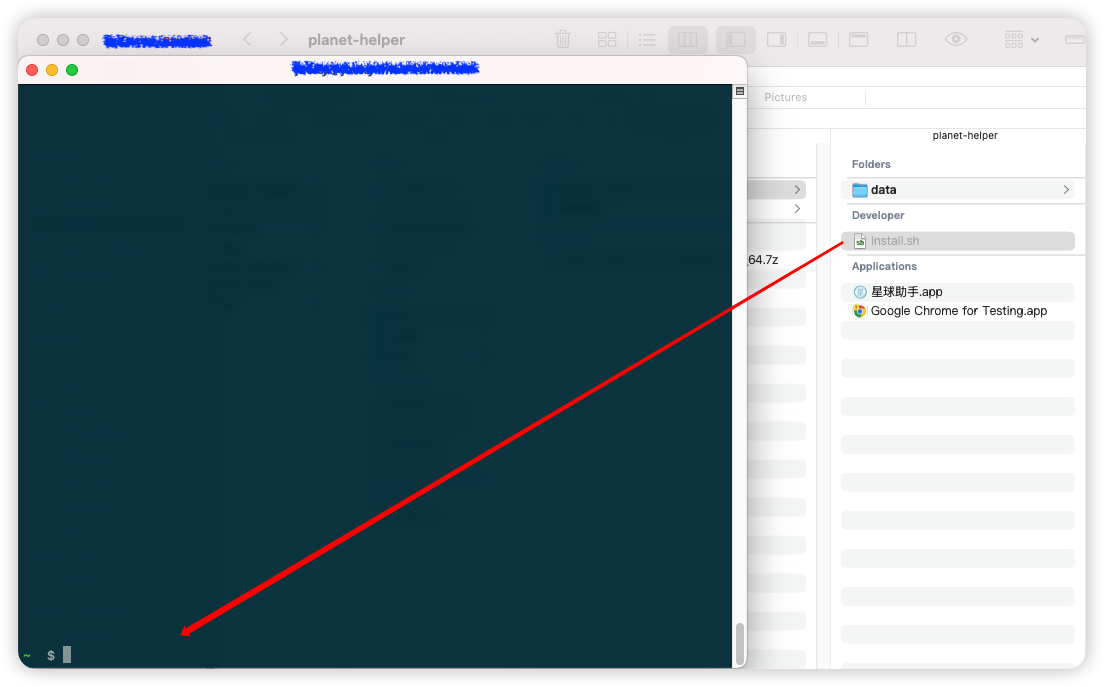
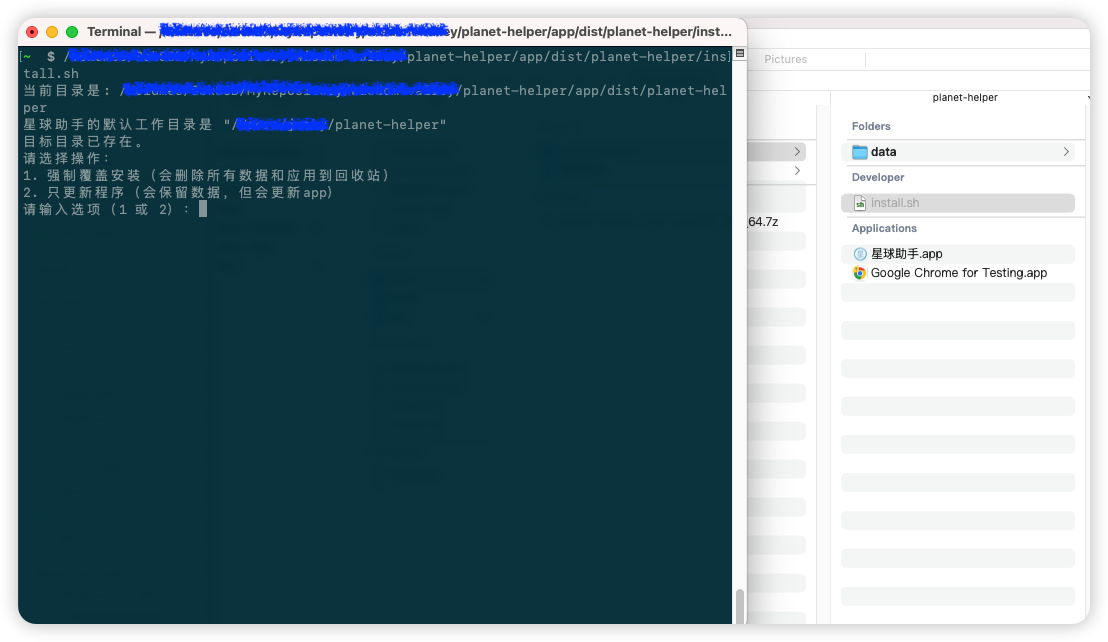
If you see a "cannot be opened" error on macOS, refer to the macOS FAQ for security override instructions. If issues persist, consider using a Windows virtual machine via VMware Workstation Pro or VirtualBox.
Resetting the Software
If you encounter persistent issues, you can use the reset scripts.
- Windows: Uninstall via Control Panel or run
uninstall.exein the application folder, then reinstall. - macOS & Linux: Run the
reset.shscript and follow the prompts. Caution: This will delete all software files and data. Ensure you have backed up important files before proceeding.
Usage
For detailed instructions, see the Usage Guide.
Windows Users: Please disable your antivirus and firewall, or allow traffic on local port 27018. Otherwise, the software may fail to start with a "Database startup timeout" error.