
macOS Software FAQ
App Crashing on Startup
If the app stalls or crashes immediately without providing an error message, it is likely due to an outdated operating system. Our macOS builds target:
- x86_64: Ventura
- arm64 (Apple Silicon): Sonoma
If your macOS version is earlier than these, we recommend upgrading your system.
If you are comfortable with the command line, you can attempt to launch the app manually to see error details:
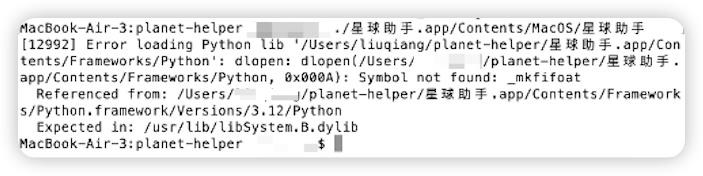 Errors similar to the one shown above typically confirm a version mismatch.
"Cannot Open Application" Error
For macOS Sequoia, refer to this guide. For earlier versions, follow these steps:

By default, macOS only allows apps from the App Store. Starting with macOS Sierra 10.12, the "Anywhere" option was hidden from the Gatekeeper settings.
To re-enable it:
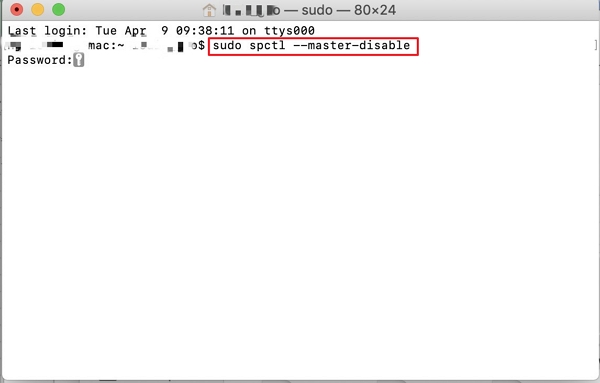
- Open Launchpad -> Terminal.
- Run the following command:
- Enter your system password (characters will not be shown) and press Enter.
- Go to System Preferences -> Security & Privacy -> General. You should now see the "Anywhere" option selected.
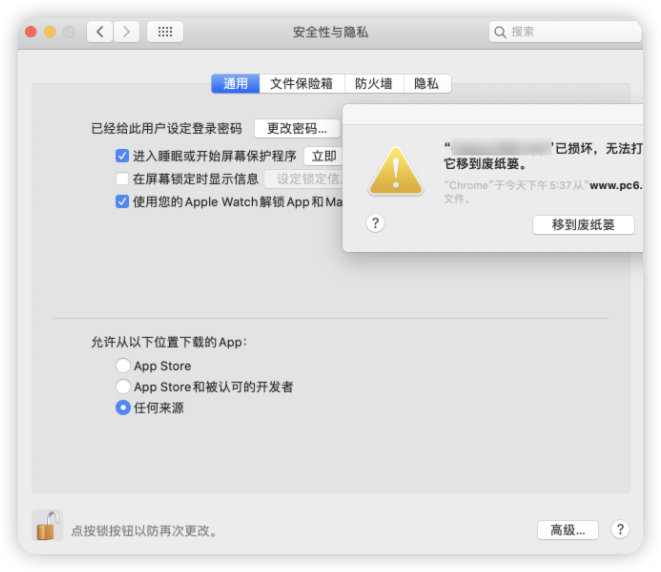
"App is damaged and should be moved to the Trash"



This is due to strict macOS security policies that flag apps without specific digital signatures as "damaged." developers are often forced into costly registration programs to avoid this. You can resolve this using one of two methods:
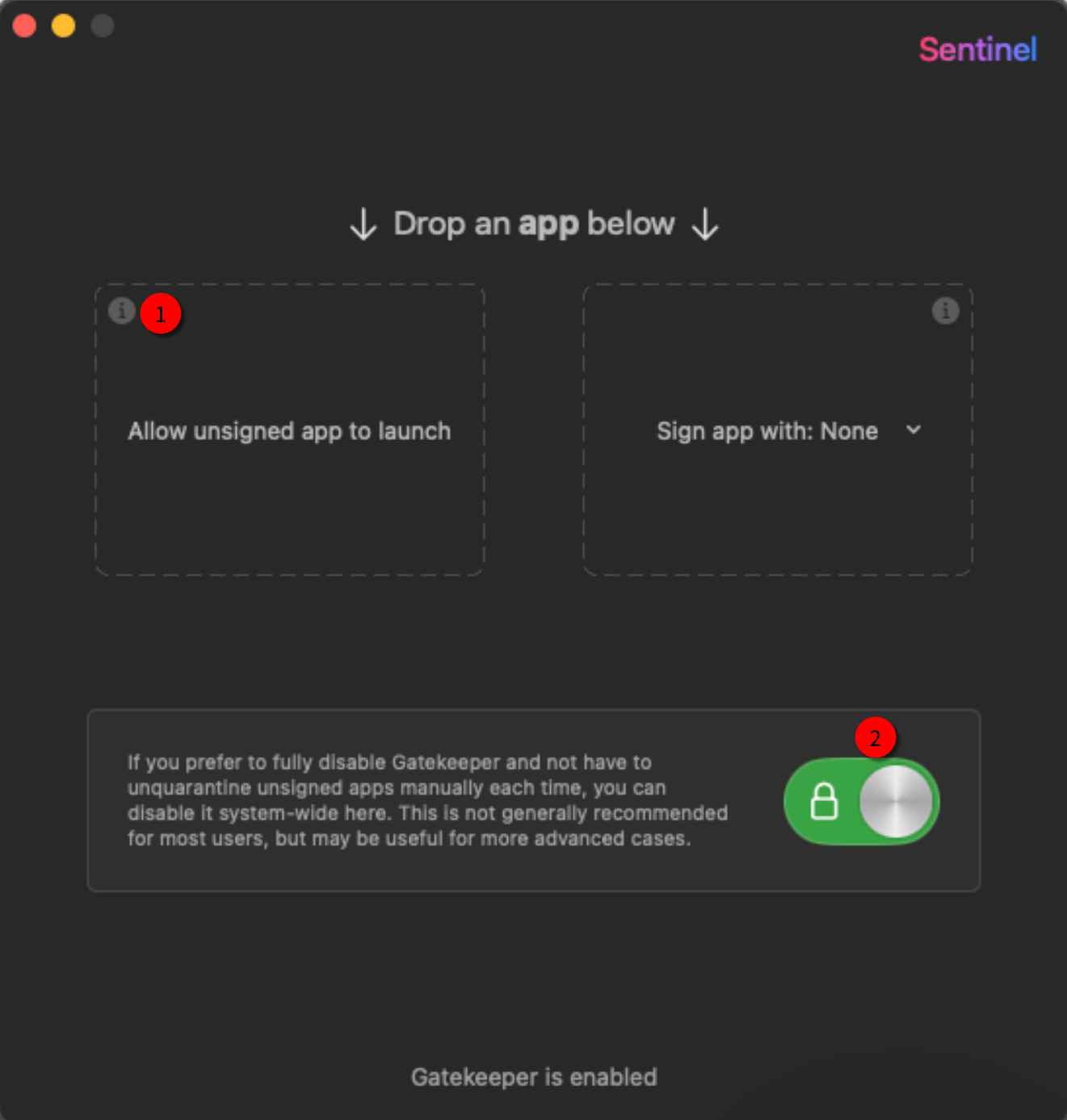
Method 1: Using Sentinel
Download Sentinel. Drag the app icon onto the ① area of the Sentinel window. If the app then launches successfully, the signature restriction has been bypassed. To apply this bypass permanently for future apps, click ② and follow the instructions.
Method 2: Manual xattr Command
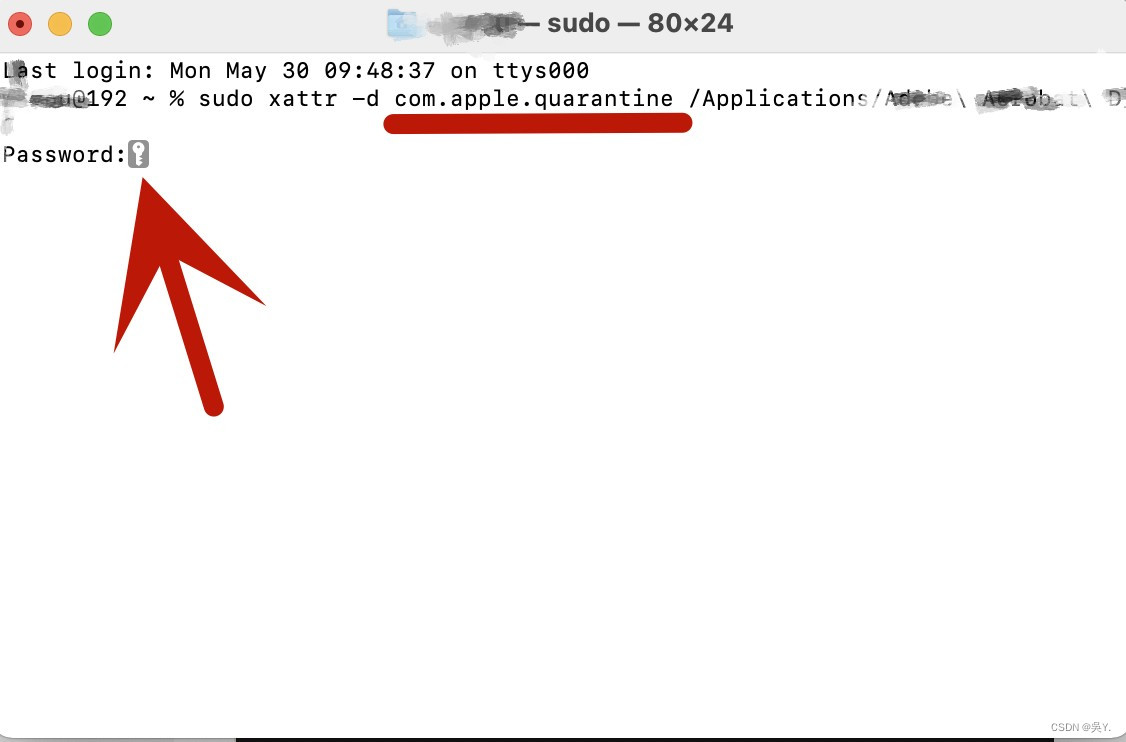
If Method 1 fails, use the following terminal command. Type the command exactly as shown (note the space after quarantine):
Do not press Enter yet! Drag the problematic app icon from Finder into the Terminal window. This will append the file path to the command, resulting in something like:
Press Enter, provide your password, and try launching the app again.
"Still Cannot Open"
If the above methods still trigger a warning, go to System Settings -> Privacy & Security and click "Open Anyway."
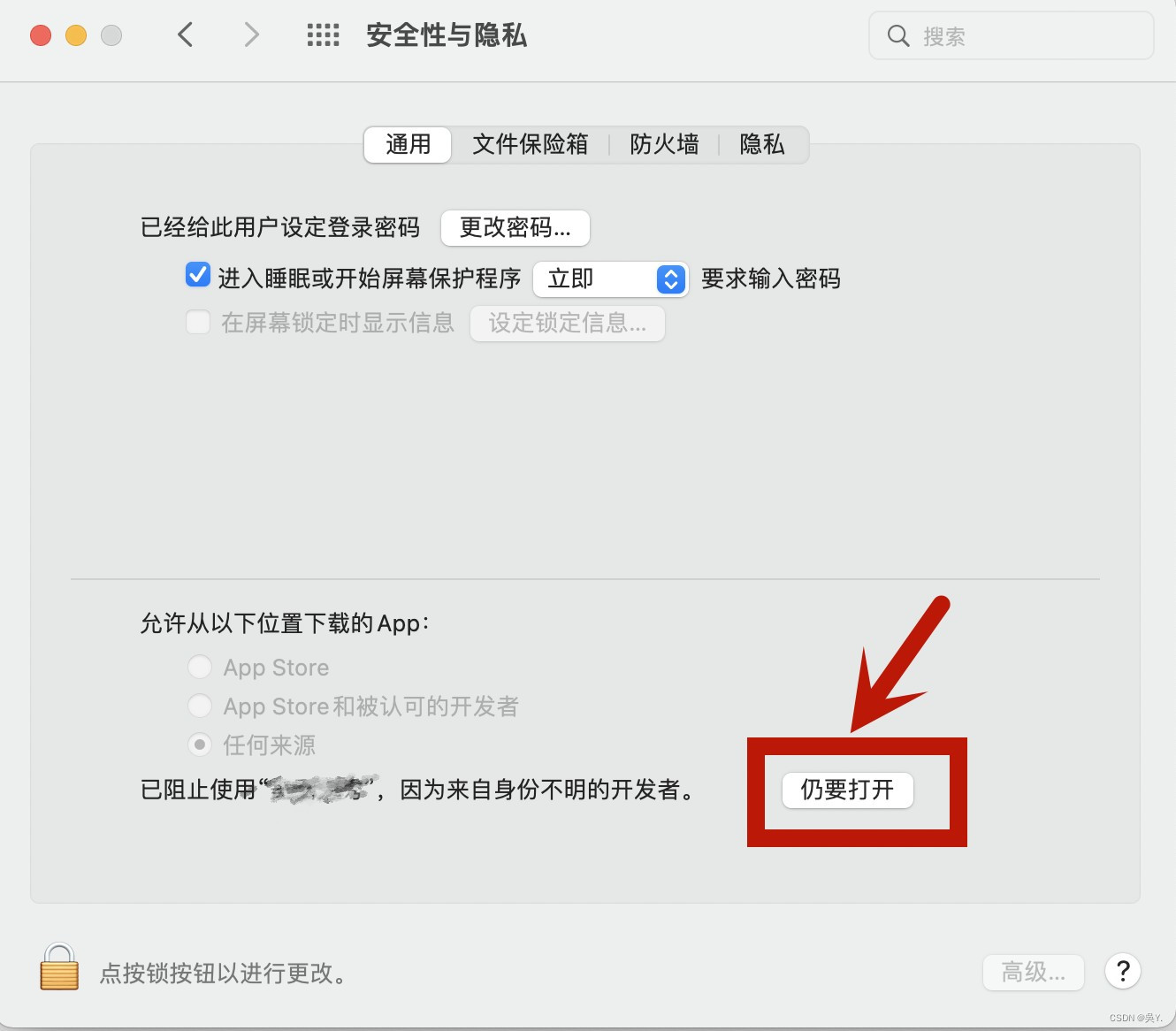
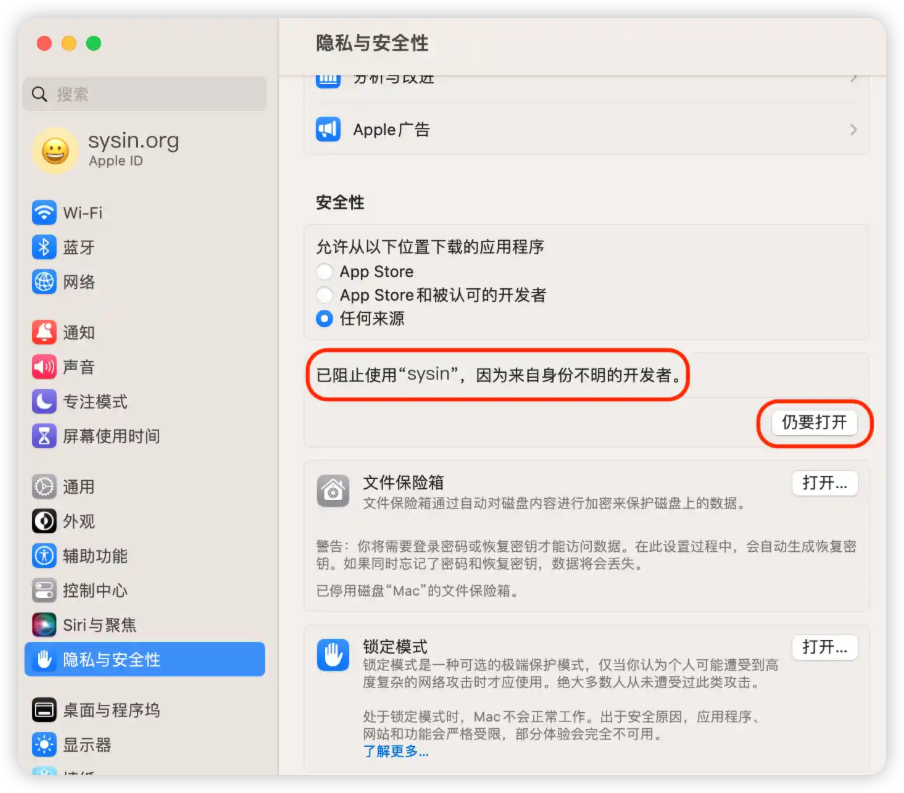
At this point, you should have successfully bypassed the macOS Gatekeeper restrictions. You only need to perform these steps until the app starts normally.