
MCP Integration
Once the MCP service is enabled, your locally backed-up ZSXQ data can be accessed directly by AI agents (Hermes、WorkBuddy、Claude Code, Cursor, etc.): the agent automatically searches posts, exports documents, and controls downloads based on your natural-language instructions.
What Is MCP
MCP (Model Context Protocol) is an open protocol for interaction between AI agents and tool services. With the Planet Helper MCP service enabled, an AI agent can directly:
- Search your backed-up ZSXQ content: search posts, view full text and comments, list planets, view statistics
- Export posts as Markdown / Word / PDF
- Control downloads: open a planet to start scraping, pause, resume, stop, check progress
- Manage planet links: add, delete
There are 13 tools in total; the AI picks the right one automatically based on your instructions.
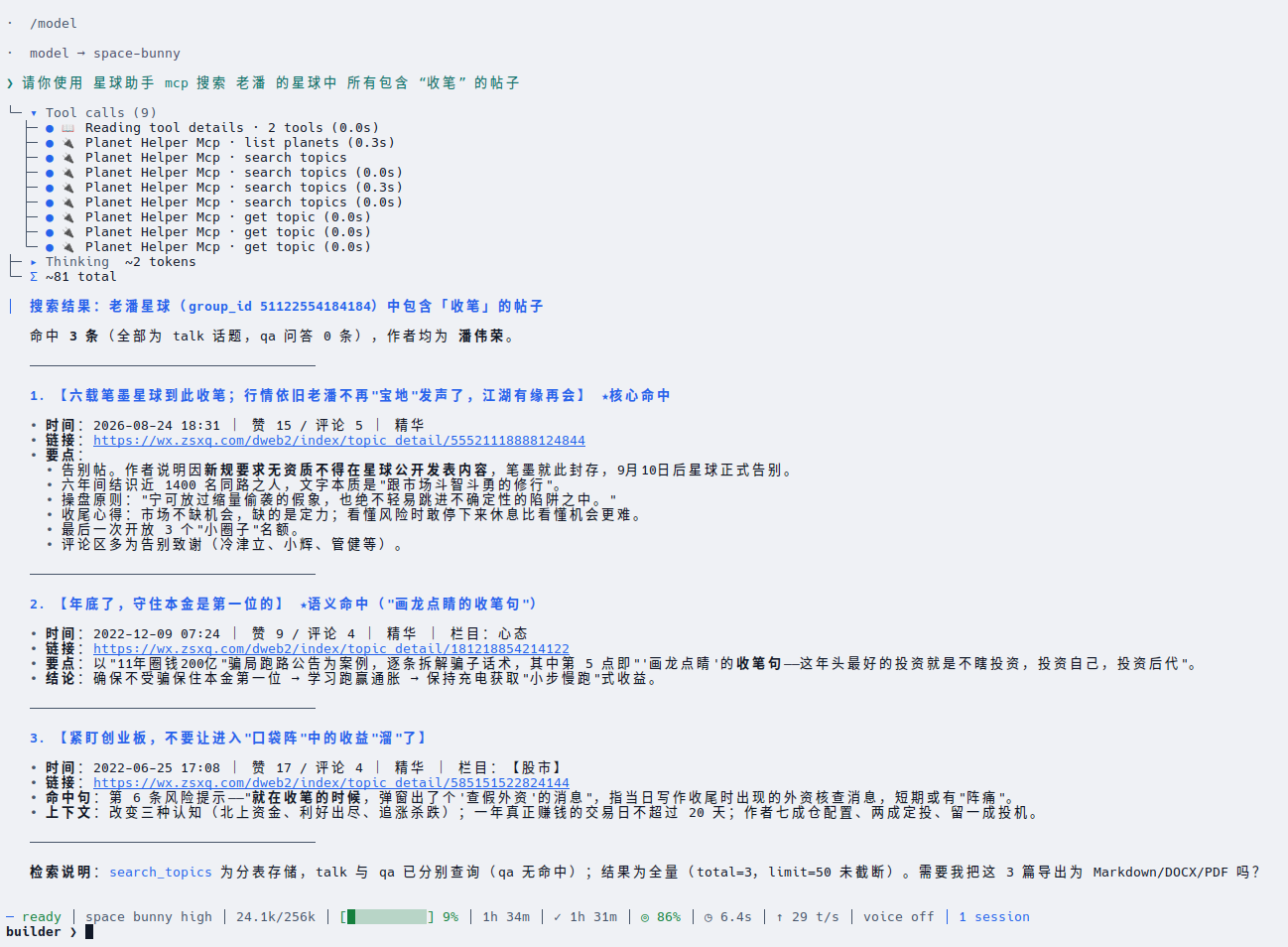
The screenshot above uses Hermes as an example: a single instruction asks the AI to find all posts containing a keyword in a planet. The agent automatically calls list_planets, search_topics, get_topic and other tools in sequence, then summarizes the results.
Enable the MCP Server
- Open Planet Helper and go to the Settings page
- In the MCP Server (AI agent access) section, check Enable MCP Server. The service starts immediately (using the current IP / port in the input fields) and a green status label appears: ● Running: http://127.0.0.1:8621/mcp
- Confirm the listen IP (default
127.0.0.1, local machine only) and port (default8621) - Click Save Settings to persist the enable state and IP / port. On the next launch the MCP service starts automatically with this configuration
Additional notes:
- Unchecking stops the service immediately (a gray "○ Stopped" label). Checking or unchecking does not require clicking Save
- After changing the IP / port, you must uncheck and re-check the option for the service to run on the new address (Save only writes the config; it does not restart the service)
- The status label reflects the running state in real time. If the service exits unexpectedly (e.g. port conflict), the label automatically corrects itself to "Stopped" within 2 seconds
Connect AI Clients
MCP endpoint: http://127.0.0.1:8621/mcp (if you changed the IP / port, use the address shown in the status label on the Settings page).
Claude Code
After adding, just talk to it naturally, for example:
Search Planet Helper for recent posts about "review" and export the top 10 as PDF
Cursor
Add the following to ~/.cursor/mcp.json (global) or the project's .cursor/mcp.json:
Hermes
Add it from the command line, using the endpoint as the URL:
During setup it asks whether the server requires authentication — Planet Helper needs none, so answer no. You can also write it directly into ~/.hermes/config.yaml:
Once added, just give instructions in the chat; the screenshot at the top of this page shows Hermes in action. Run hermes mcp test planet-helper to check connectivity.
WorkBuddy
WorkBuddy is configured through its GUI: open the Connectors page, click Custom Connection in the top-right corner, then click Configure MCP in the "MCP Service Management" dialog.
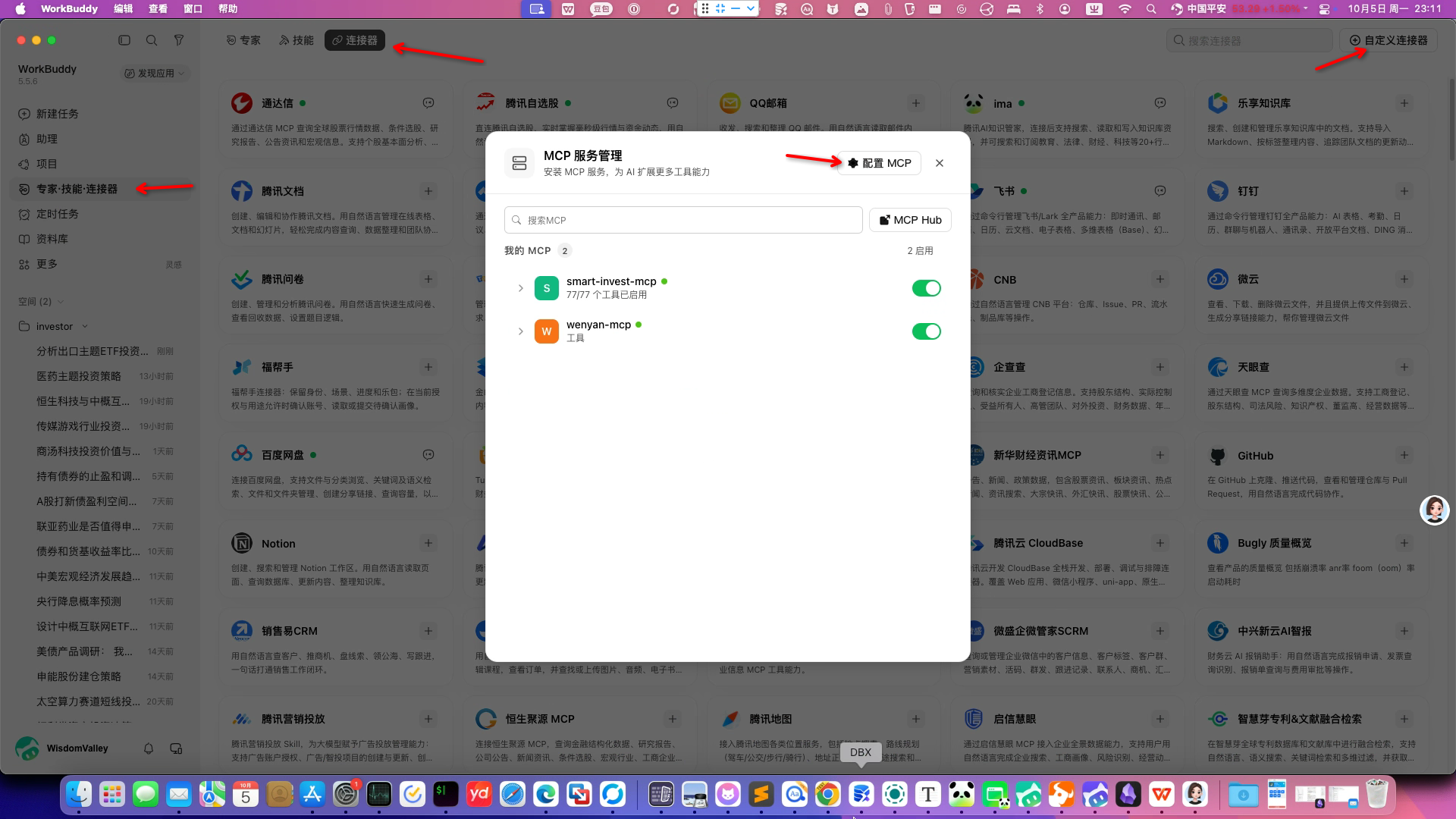
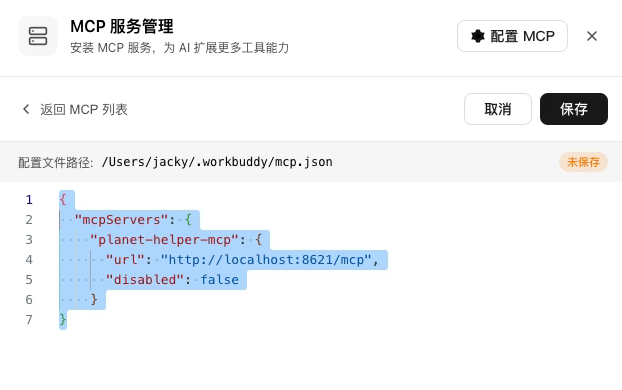
Put the following into the config file (~/.workbuddy/mcp.json) and click Save:
Other MCP Clients
Any MCP client supporting the Streamable HTTP transport can connect to the endpoint directly — no token or credentials required. For debugging, use the official MCP Inspector:
Select Streamable HTTP in the Inspector UI, enter the endpoint URL, and test the tools one by one.
Listen IP and Security
| Listen IP | Effect | Use Case |
|---|---|---|
127.0.0.1 (default) |
Local machine only | Most scenarios (AI client and Planet Helper on the same computer) |
0.0.0.0 or a LAN IP |
Other devices on the network can access | Remote agents on a trusted LAN only |
The MCP service has no password / token authentication. If you set the listen IP to 0.0.0.0, any device on the same network can access all of your backed-up ZSXQ data without credentials (full posts, comments, attachment downloads, etc.). Only use this on a fully trusted network, and switch back to 127.0.0.1 when done.
Usage Notes
Search Pagination: Don't Blow Up the AI Context Window
The search tool's page size defaults to 20, and you can ask for no limit in your prompt. Fetching hundreds of posts at once floods the LLM's context window with JSON, causing:
- The AI forgetting what you said earlier (context gets pushed out)
- Slower responses and higher cost
- Errors once the model's context limit is exceeded
A better approach is to let the AI fetch page by page in a loop, e.g.:
Search posts about "growth" in pages of 20 until you have fetched everything, then summarize the topics for me
The AI then fetches page by page with "skip + limit", keeping memory and context under control. Whether to raise the page size is up to you.
Batch Export: Slow at Scale, May Freeze the UI
Batch export has no item limit, but it is CPU-intensive (especially PDF rendering and image processing):
- Tens of posts: seconds to tens of seconds
- Thousands or more: possibly minutes to dozens of minutes or longer; in the worst case the Planet Helper UI becomes unresponsive (the export keeps running in the background)
It is recommended to confirm the number of matching posts with a search first, then decide the export scope. For very large exports, split by planet or by time range, and avoid using other features of the app during the export.
Download Control Specifics
- Open Planet launches a browser window and waits for you to scan the QR code to log in to ZSXQ (15 seconds by default, adjustable in Settings). Scraping starts only after login
- Pause Download is not instantaneous: the app first finishes the current batch (at most 1 more post / 1 more attachment) and only truly stops after the log shows "fully paused". Images / attachments of skipped posts are not downloaded this round (post data itself is already saved); after resuming, refresh the page or use auto-capture to fetch them
- Download control tools require Planet Helper to be running — the MCP service is embedded in the app, so the agent cannot control downloads once the app is closed
- Under a trial license, each session can download at most 5 attachments (the AI sees the remaining quota when querying download status)
Other Tips
- Exported files are stored in the app's export directory (path visible on the Settings page); the AI will tell you the exact output location
- AI retrieval queries the app's local database and never touches the network
- Multiple AI clients can be connected at the same time (one session per client)
Troubleshooting
| Symptom | Possible Cause and Fix |
|---|---|
| "Port already in use" after saving | Port 8621 (or your custom port) is taken by another program; pick another port and save again |
| Settings shows "○ Stopped" although enabled | The service exited unexpectedly (port conflict / system sleep, etc.); click Save Settings once to restart it |
| AI client cannot connect | Make sure Planet Helper is running and the status label shows "● Running"; make sure the address in the client matches the label |
| Remote connection fails after setting IP to 0.0.0.0 | Check that the OS firewall allows the port; make sure both devices are on the same network |
| AI reports "GUI not ready" | The app has just started and is still initializing; retry in a few seconds |
| Search returns no results | The keyword does not exist in the backed-up posts; download / scrape that planet in the app first |