Usage Guide
Login
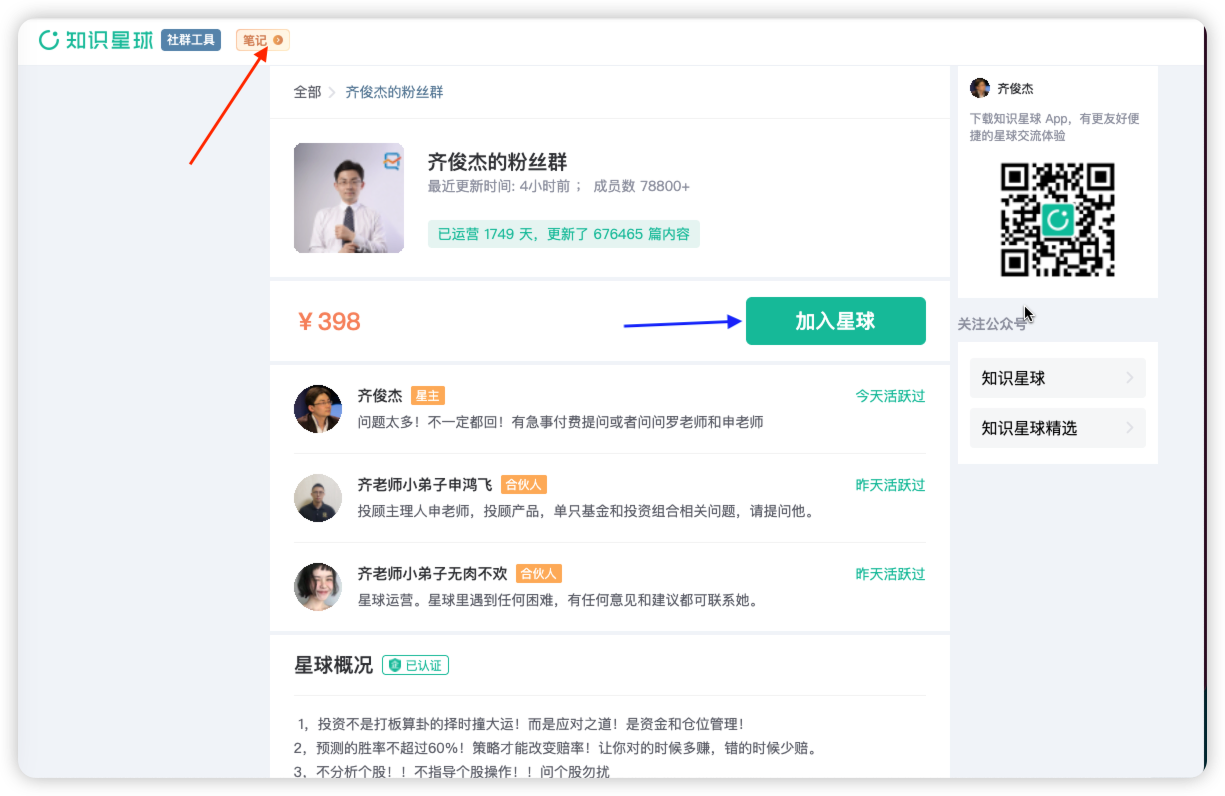
ZSXQ requires a login to access and download data. Since Planet Helper uses its own built-in Chrome instance, you must scan the QR code within that browser. This is independent of any other browsers installed on your system. Typical login screens:
- If you haven't joined the planet, click the button indicated by the blue arrow to pay.
- If you are already a member, click the button indicated by the red arrow to log in via QR code.
Downloading Data
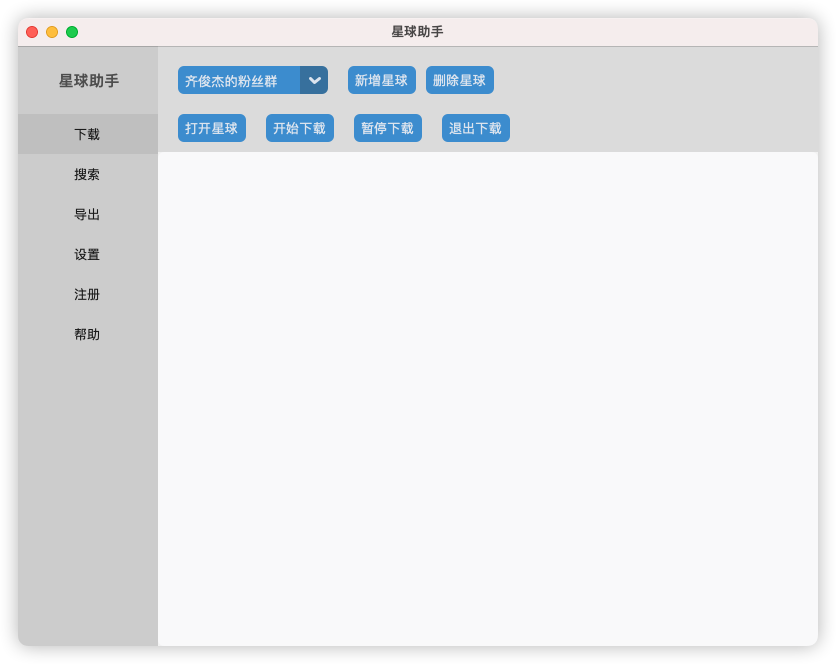
Button Functions:
- Add Planet: Register a new planet's information in the software for quick access later.
- Delete Planet: Remove a previously registered planet. (To edit, delete and add it again).
- Open Planet: Launches the built-in Chrome browser to the planet's URL. Content will be downloaded to your designated folder. Note: Do not switch between planets within the same browser session.
- Start Download: If "Auto-download on open" is disabled in Settings, you must click this manually after opening a planet.
- Pause Download: Pauses the process after finishing the current batch of posts and attachments. Click "Start Download" to resume.
- Exit Download: Closes the Chrome browser and ends the session.
Typical Download Workflow:
- Click Download in the left sidebar, then click Add Planet. Enter the planet's name and its URL (e.g.,
https://wx.zsxq.com/group/552521181154). Ensure the URL format is correct.
- Click Open Planet to launch the designated Chrome browser.
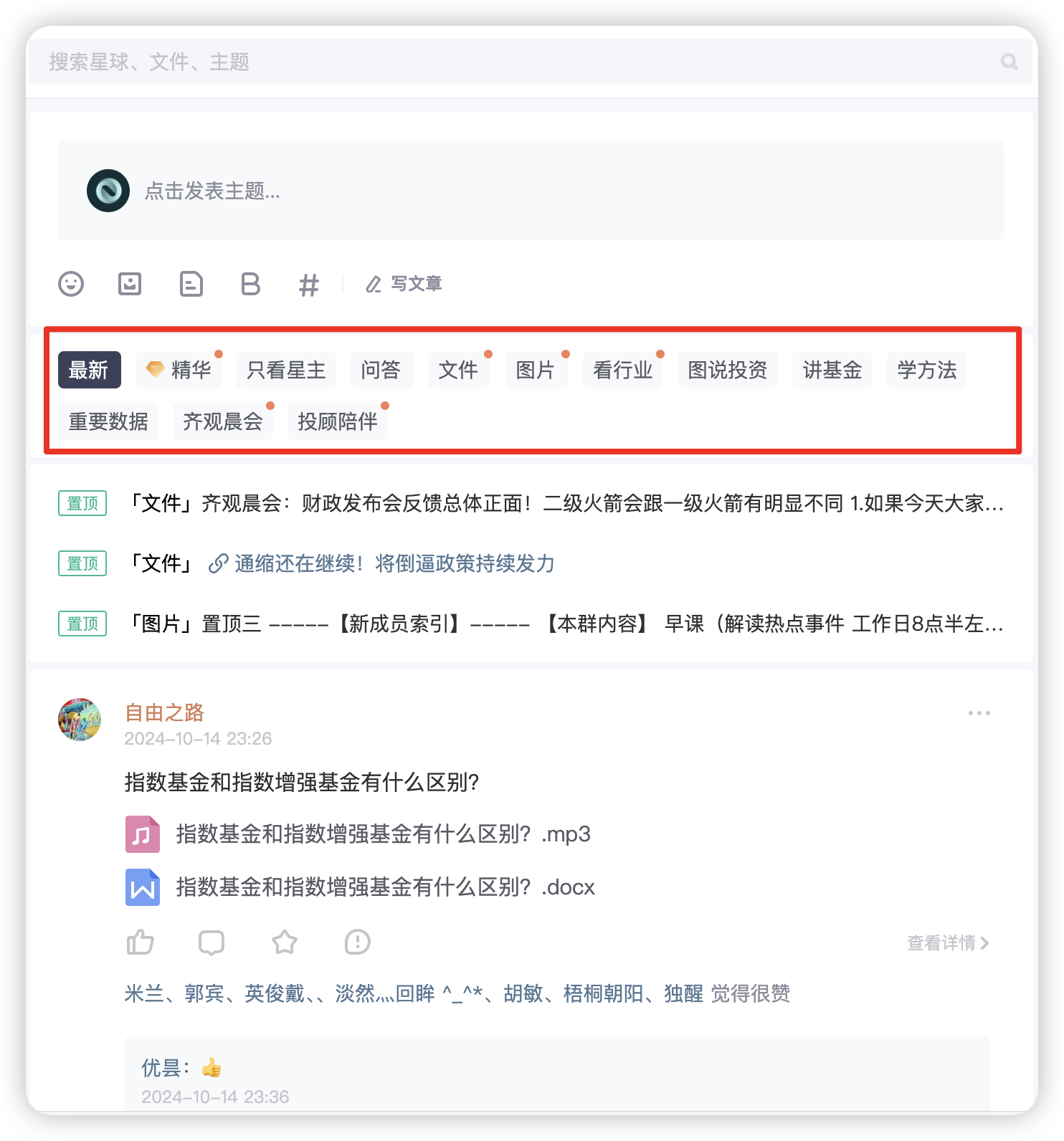
- Select the tab/category you wish to download. The app will automatically begin capturing posts. If the logs consistently show "No more content to download" but new posts exist, click Exit Download and then Open Planet to retry.
For data storage locations, refer to the FAQ.
⚠️ Important Notes:
- Once a download session starts for a specific planet, do not switch to a different planet within that browser window, as it will corrupt the data. The software will alert you if this is detected. To switch planets, click Exit Download, select the new planet, and click Open Planet.
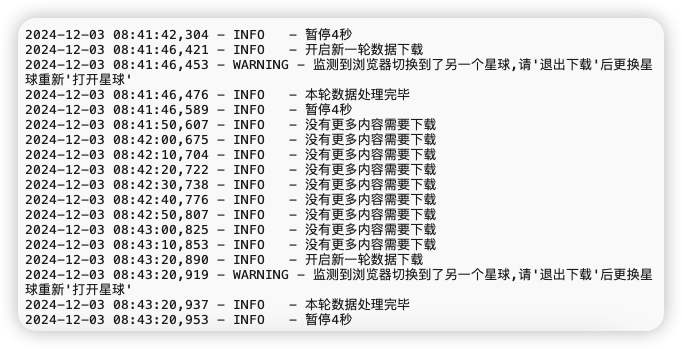
- The software only uses its built-in Chrome instance; it does not interact with your system's default browsers.
Search
This feature allows you to filter specifically for posts by the Planet Owner—typically where the highest value information resides. Native ZSXQ search often mixes in results from all members, making filtering tedious.
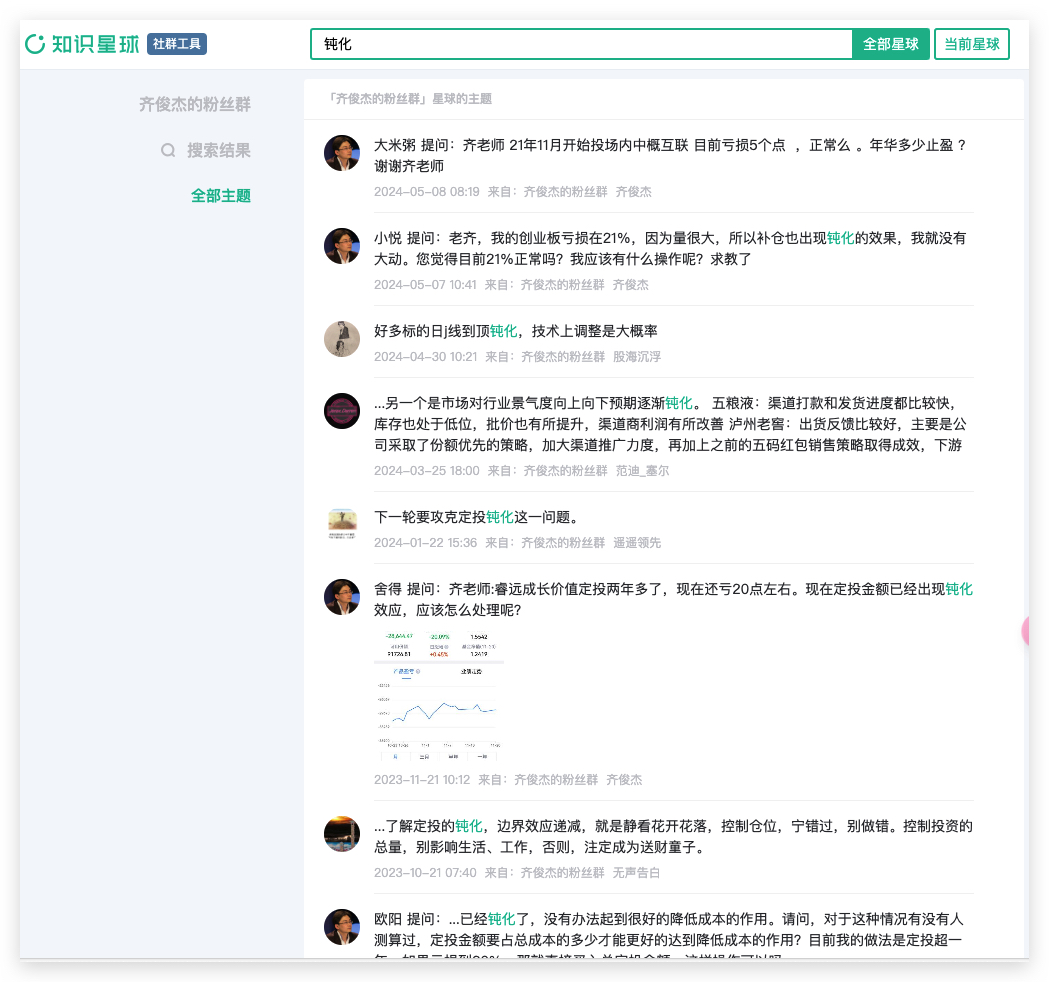
How to use: First, download the planet data locally. Then, click Search in the left sidebar. Choose to search "Q&A" or "Posts" and enter your keywords for precise results.
- Q&A: Questions from members and answers from the Planet Owner. These are often highly valuable as they address real-world scenarios.
- Topics/Posts: All posts within the group. Quality varies more here.
- Owner Only: Filters specifically for content authored by the Planet Owner.
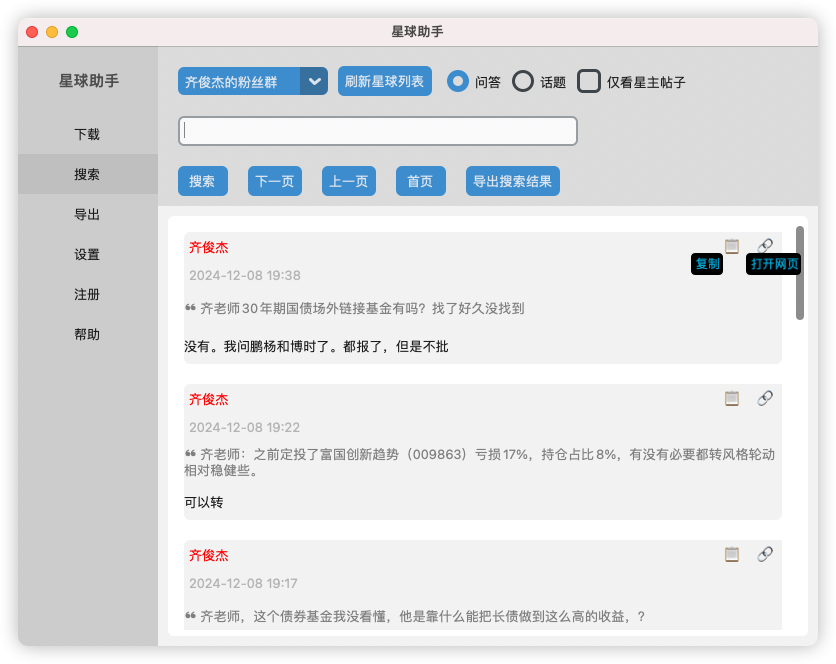
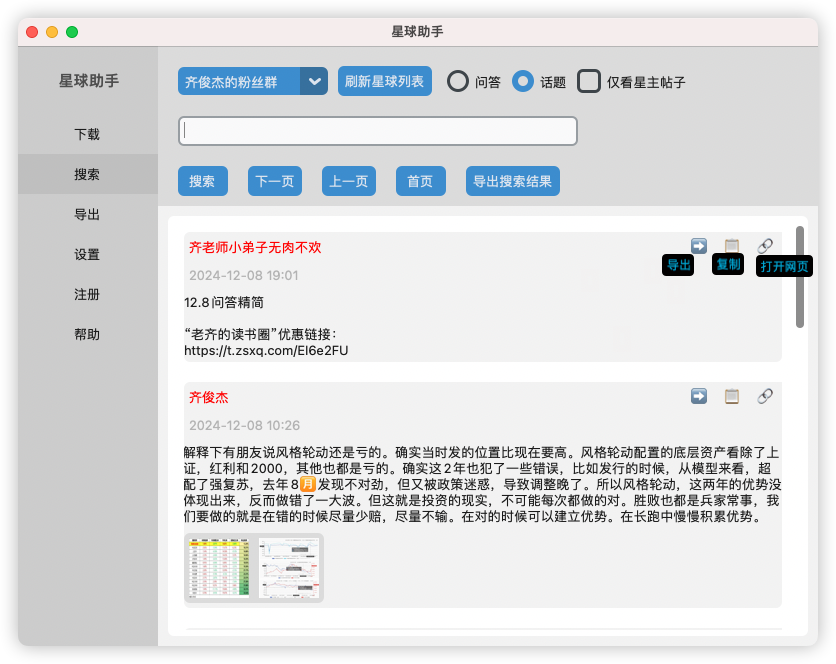
- Click 🔗 next to any result to open it in the ZSXQ web interface for more details or to "Favorite" it online. The app works best when paired with the official web version for saving items.
- Click 📋 to copy the post text to your clipboard.
- Click ➡️ to export the post to Docx, PDF, or Markdown.
- Click 🗨 to view comments on the post.
Batch Export
You can perform batch exports from two places:
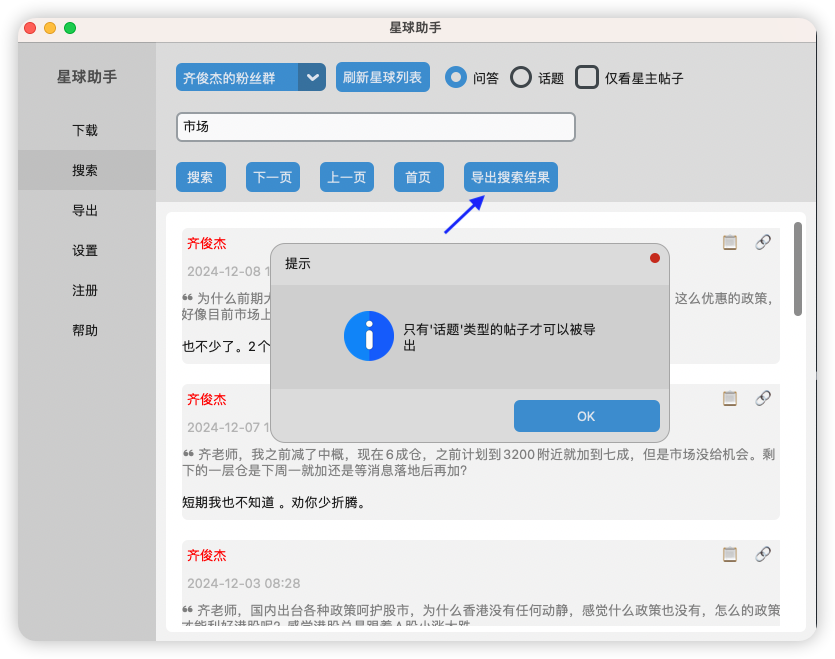
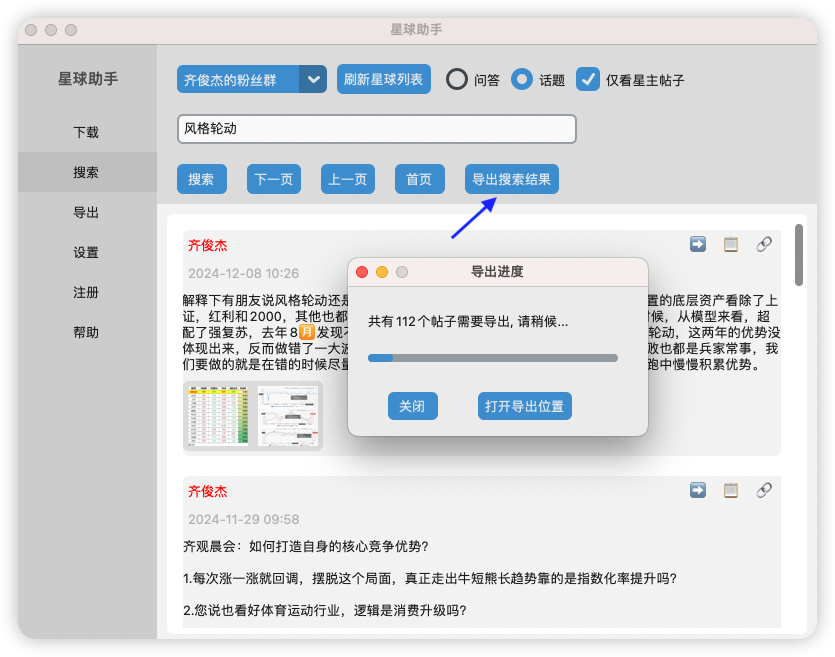
- Search Module: Export multiple search results at once (both "Topics" and "Q&A").
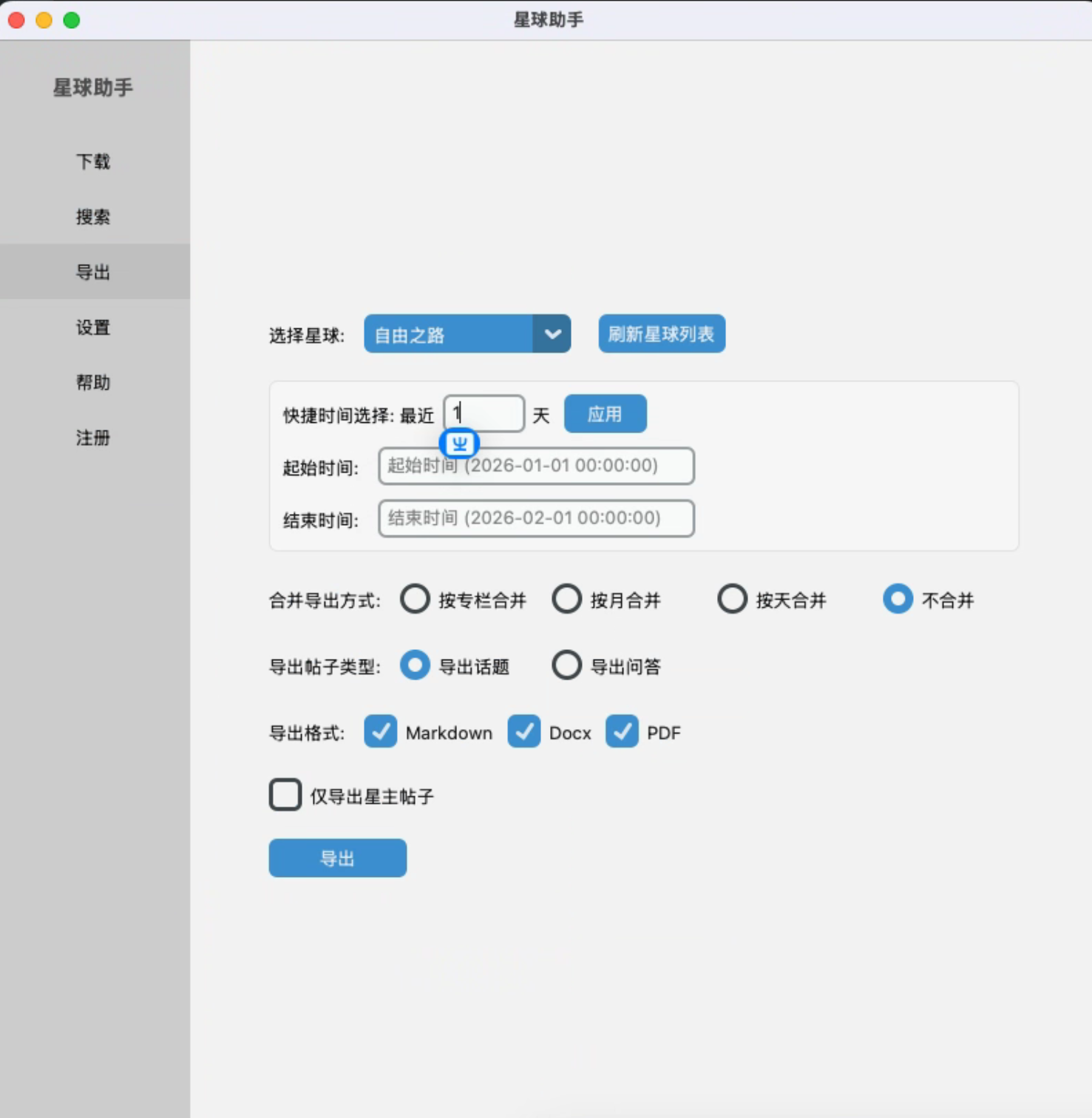
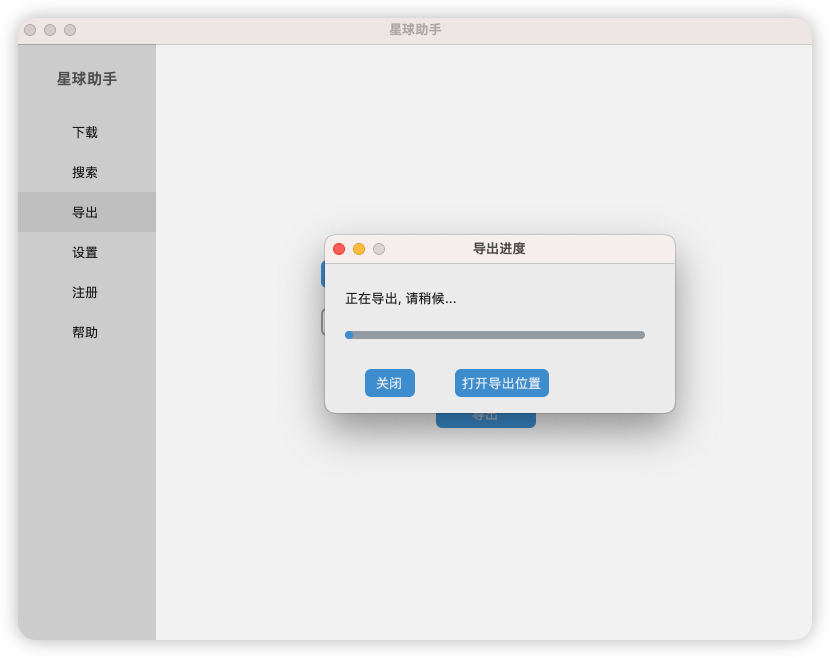
- Export Module: Export in bulk organized by Month, Day, or Column.
⚠️ Note: If a post contains images that haven't been downloaded locally, its export might be flagged as "failed." However, the text will still be exported; only the missing images will be omitted. To fix this, re-download those specific posts until the images are captured successfully.
"Search" Module Export:
"Export" Module Details:
- Start/End Date: Define a specific time range (Year-Month-Day Hour:Minute:Second).
- Merge by Column: If the planet has "Columns," items within each column are merged into a single file.
- Merge by Month: All posts from the same month are merged.
- Merge by Day: All posts from the same day are merged.
- No Merging: Generates one individual file per post.
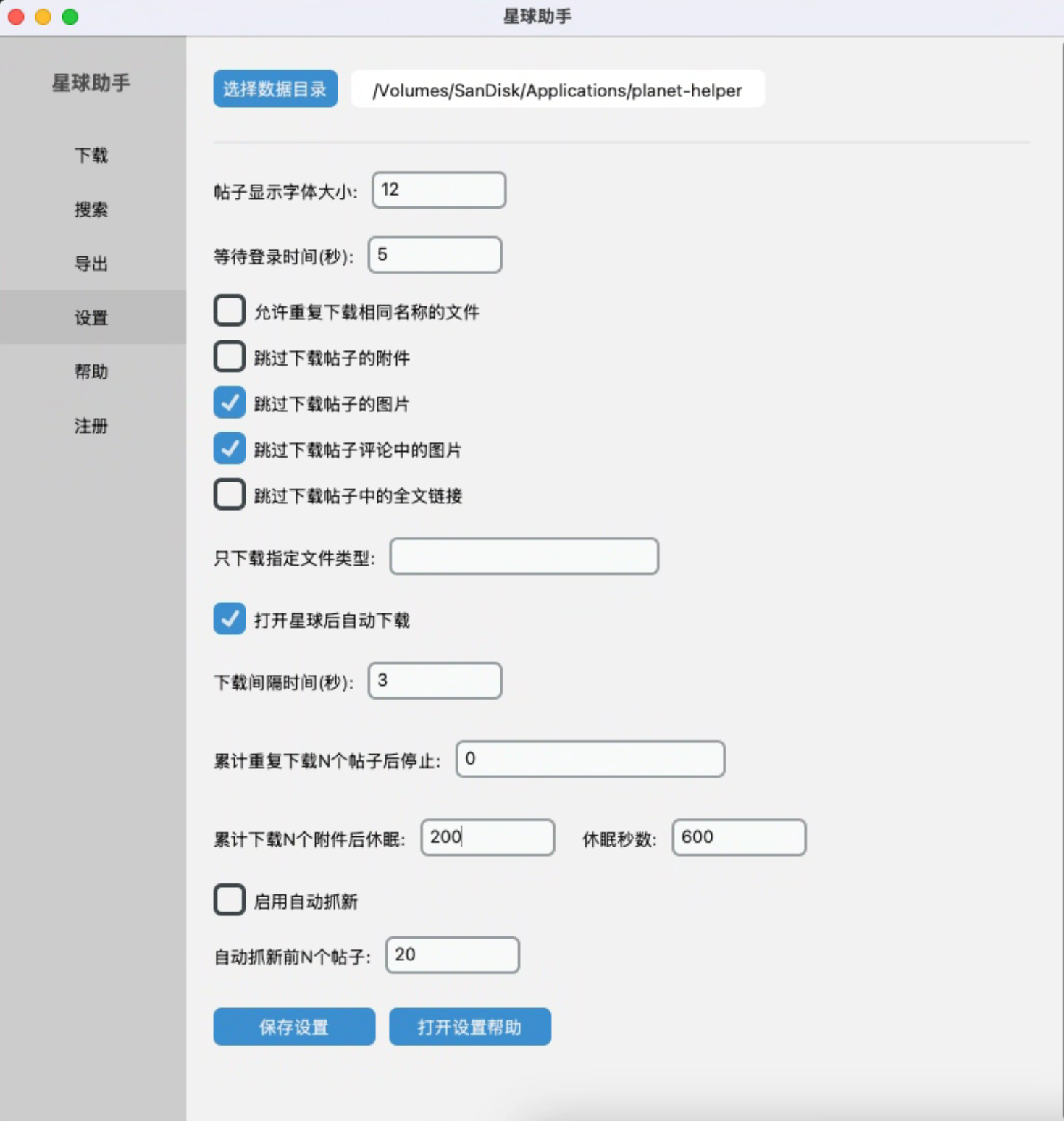
Settings
- Select Data Directory: Change where your data is stored (useful if your primary drive is running out of space). Follow the on-screen prompts for automatic migration.
- Font Size: Customize the text size of posts.
- Login Wait Time: How long the internal browser waits for you to scan the QR code.
- Allow Redeownloading Duplicate Files: By default, the app skips files with existing names. Enable this to overwrite them (e.g., if a group owner updates a document without changing its filename).
- Skip Attachments: Do not download any non-image attachments.
- Skip Images: Do not download any images within posts.
- Skip Comment Images: Do not download images found in comments.
- Skip Full-Text Links: For "Article" posts, only capture the snippet/preview rather than the full linked article.
- Filter by File Type: Download only specific extensions (e.g.,
.mp3,.pdf,.docx). Leave empty for all types. - Auto-Download on Open: Automatically starts the download process as soon as "Open Planet" is clicked.
- Download Interval: Time to wait between download batches to avoid being flagged by ZSXQ's anti-scraping systems.
- Stop after N Duplicates: Automatically stop the download after encountering a set number of already-downloaded posts.
- Sleep after N Attachments: Automatically pause the app after a set number of attachment downloads to manage IP-based limits.
- Auto-Capture and Threshold: Continuously refresh the top N posts to capture content before it can be deleted by moderators. Use this with a reasonable download interval to avoid detection.
Help
- Open Starter Guide: Link to the online manual and FAQ.
- Send Logs: If you experience issues, click this to securely send us your local error logs for diagnostic help.